Create your account
Tallyr has no passwords. You give it an email address, it emails you a six-digit code, and the first time you use it that same code creates the account.
Open Tallyr and choose Business owner
Go to app.tallyr.com.au in any browser — your phone or your laptop. The first screen asks who you are.
Under For businesses, pick Business owner. The other two options are for your customers and for the staff who stamp at the counter; they see different screens and cannot reach your settings.
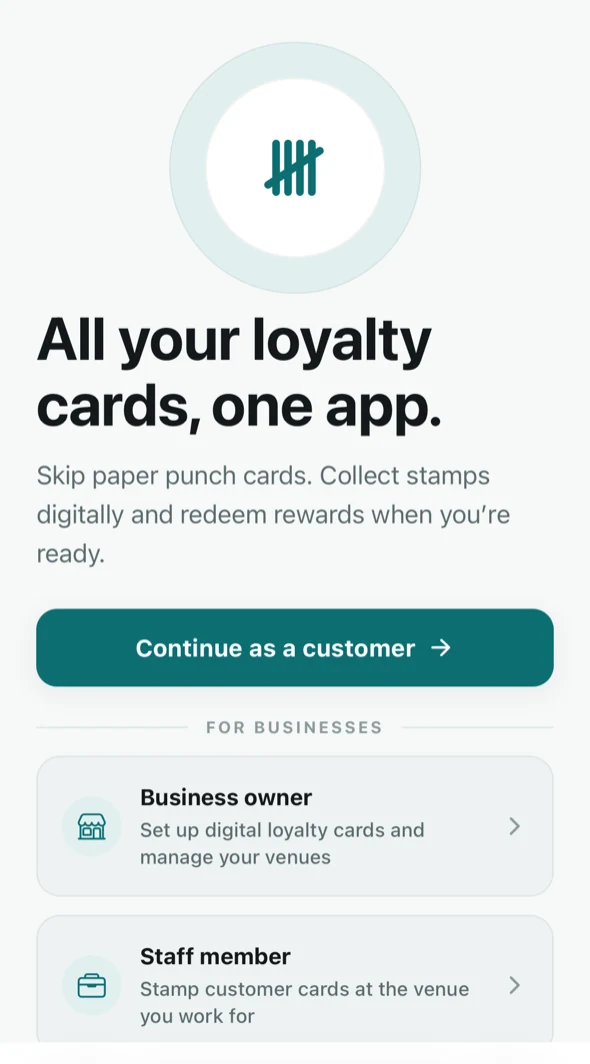
Choosing a role on the welcome screen. Enter your work email
Type the address you want to run the business from and tap Email me a code. There is no password field, because there is no password.
The screen spells out what happens next: “We’ll email you a 6-digit code. No password to remember — and if you’re new, the same code creates your account.”
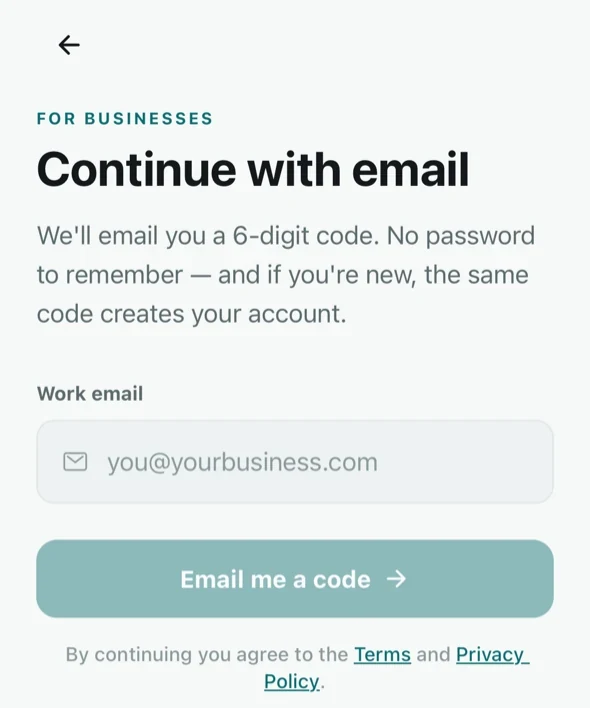
Requesting a sign-in code. NoteUse an address you will keep. It is where sign-in codes, receipts and messages about your plan go, and it is the address your staff will see when you invite them.
Type the six-digit code
The code arrives by email, usually within a few seconds. Enter it on the Check your email screen.
If it has not arrived, check your junk folder, then use Resend code once the countdown finishes. Mistyped the address? Change email takes you back a step.
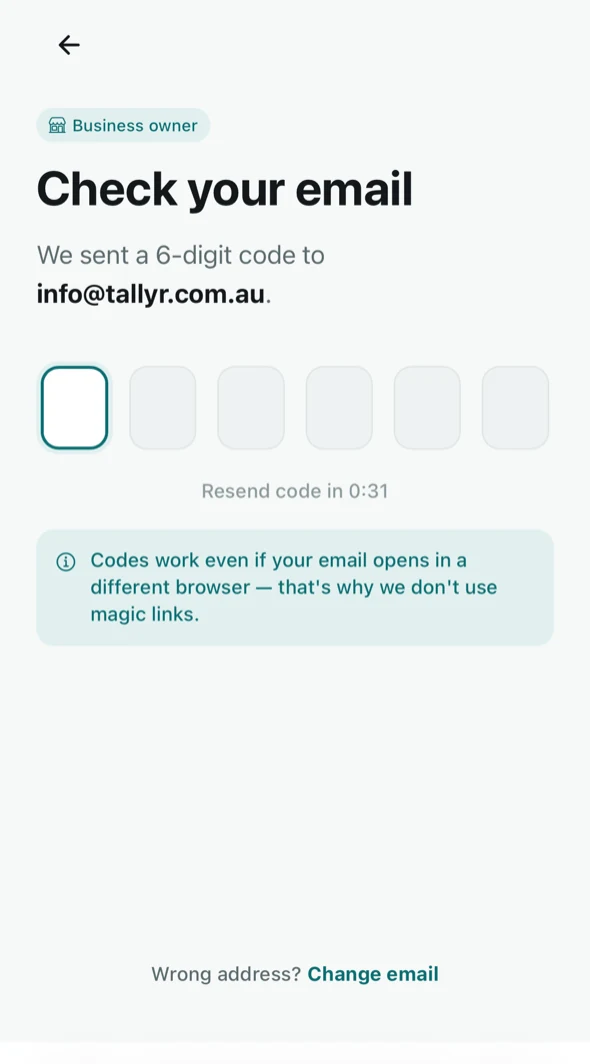
Entering the six-digit code. NoteTallyr sends codes rather than magic links on purpose — as the screen says, a code works even if your email opens in a different browser from the one you are signing in on.
You are in
A brand-new account goes straight into setting the business up, which is the next guide. There is no plan to pick first: every new business starts on Free, with no card.
If you signed up as a customer first and are only now adding a business, Tallyr opens in the customer view instead. Tap your initials in the top right and choose Set up your business to begin.
Signing in again later
Every sign-in works the same way: enter the email, enter the fresh code. Codes are single-use and short-lived, so an old email cannot be used to get back in.
Staff sign in the same way but from the Staff member option, and they only reach the counter screens for the venues you assign them. See Invite and manage your staff.