Set up your business
Setup is four steps and it ends with a live loyalty card. You can leave part way through and come back — Tallyr keeps the draft and tells you it is picking up where you left off.
A new account starts here automatically. There is no plan to choose and no card to enter first — every new business starts on the Free plan, and you can upgrade later if you need to.
You and your business
Step 1 asks three things: your full name, your mobile number (optional) and the business name.
The business name is labelled What customers will see, so write it the way it appears on your shopfront. There is deliberately no logo or colour here — those belong to the card, two steps later, which is what keeps this step to one screen.
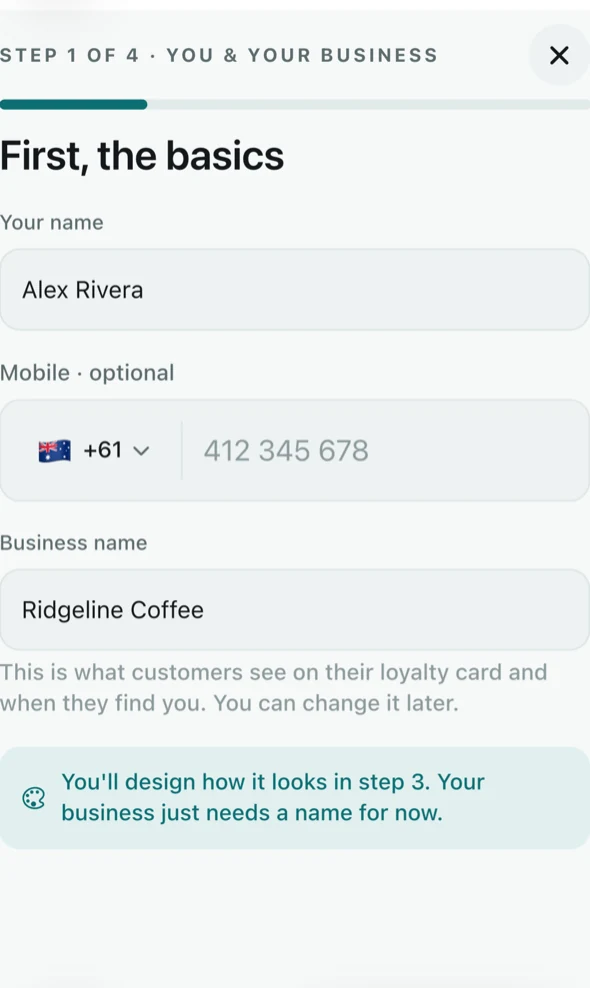
Step 1 of 4 — you and your business. Say where you trade
Step 2 asks for your first venue: the name customers will recognise and the address they visit. Start typing the street address and Tallyr offers matches — pick one and it fills in the suburb, state and postcode for you.
“Add every shop now or just the first — you can add more any time.” One is enough to finish setup; the rest can come later from the Locations tab.
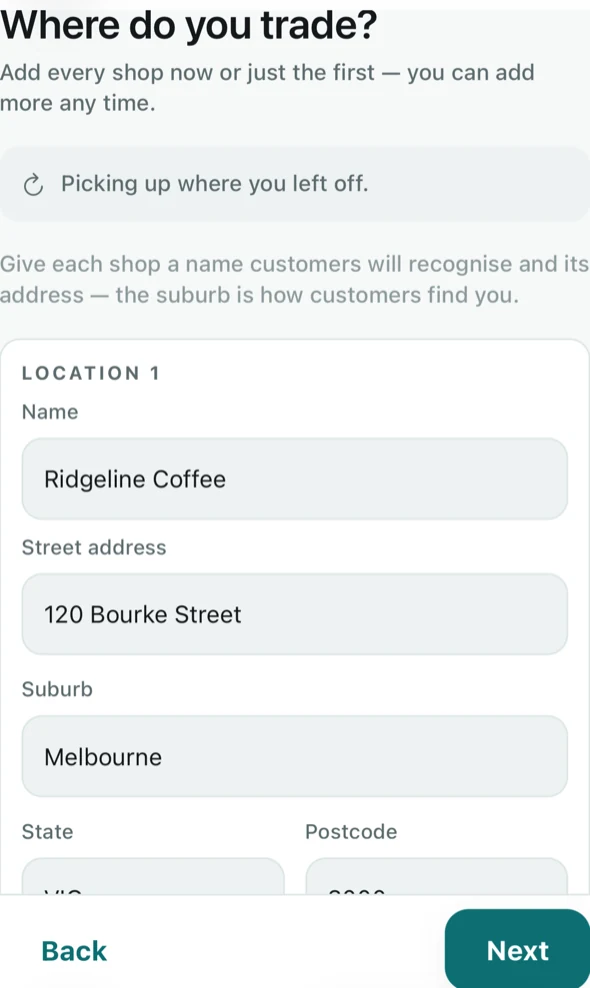
Step 2 of 4 — your first location. NoteThe Free plan includes one location. Tallyr Pro ($25 a month) includes two, and each one after that is $5 a month. See Your plan and billing.
Design the card
Step 3 is the loyalty card itself. A live preview sits at the top and updates as you change things, so you are always looking at what the customer will see.
You can set a logo, pick a card colour from the five presets or a custom one, choose the stamp icon, write the reward — What does a full card earn?, with suggestions offered underneath — and set Stamps to earn it with the stepper. Ten is the default.
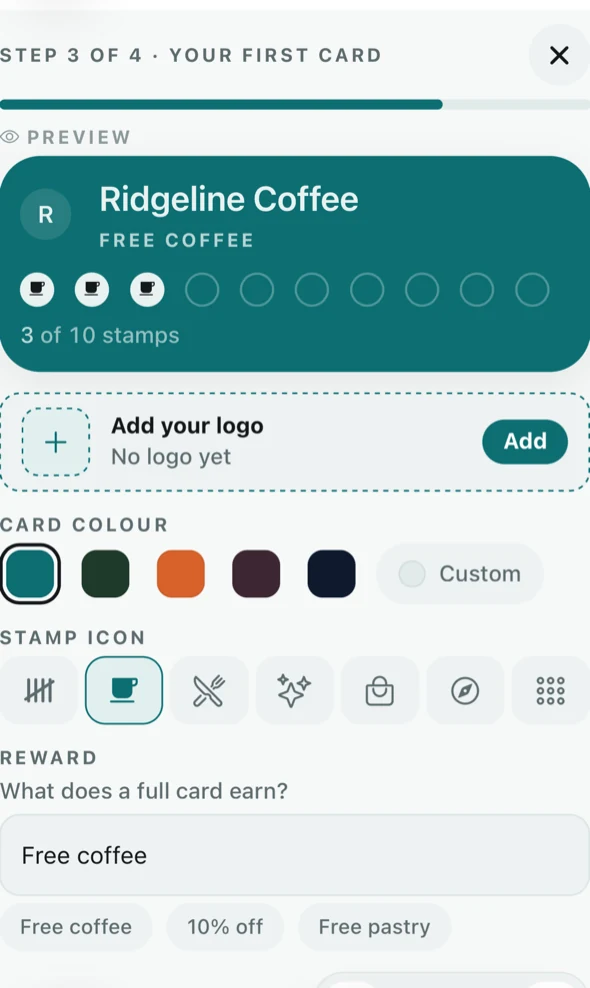
Step 3 of 4 — the card, with a live preview. NoteThe reward is what the customer reads on the card, so keep it concrete: “Free coffee” tells them what they are working towards in a way that “Loyalty reward” does not.
Say where the card runs, then create it
Step 4 asks which venues the card can be stamped at. Every location is ticked by default, and Include locations you add later is on — which is what most single-brand businesses want.
Untick a venue and the preview changes with it: the badge on the card flips from ALL LOCATIONS to the narrower scope, so you see the consequence at the moment you choose it. Then tap Create my card.
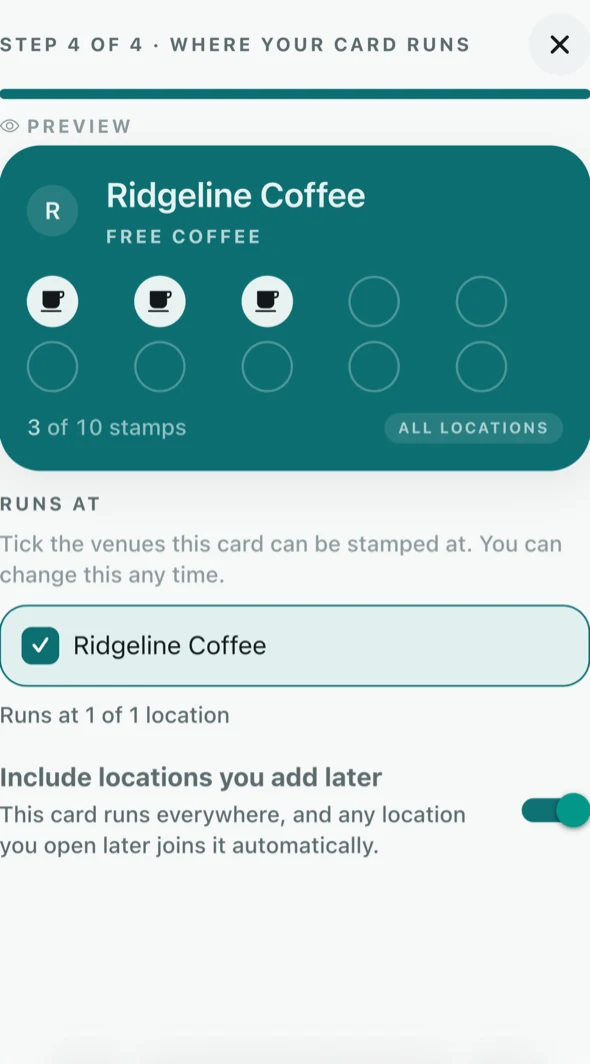
Step 4 of 4 — where the card runs. NoteThis step is where the card is actually created. Nothing is live until you tap Create my card, so you can still go back and change any earlier step.
You are set up
Tallyr confirms the card is live — “Ridgeline Coffee is live at 1 location” — and offers the three things worth doing next: a quick guided tour, printing the QR poster customers scan to join, and inviting the staff who will stamp.
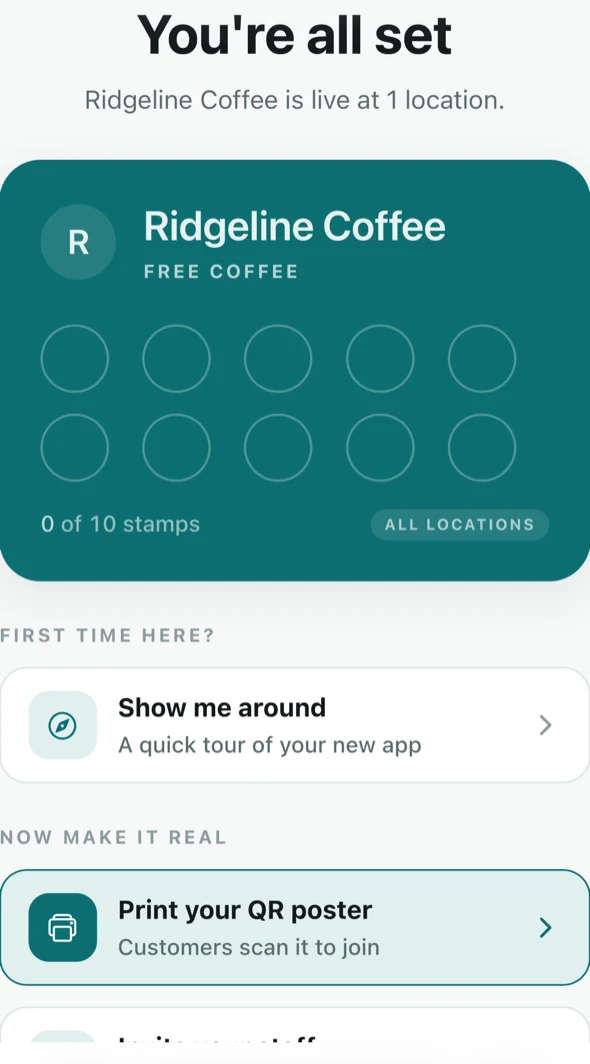
Setup complete. Those last two have guides of their own: Get customers joining and Invite and manage your staff.
If you leave setup part way
Use Leave setup at any step. Your answers are kept as a draft, and when you come back the wizard says “Picking up where you left off.” Nothing is published and no loyalty card exists until step 4 finishes.