Use the till screen
The till screen turns a tablet or a computer by the register into the counter. Scanning sits on one side, the stamp requests list on the other, and it stays open all shift.
Open it from the Scan screen
On the tablet or computer, sign in as staff at app.tallyr.com.au, open the Scan tab and choose Open till screen. The till opens for the venue you are on, at app.tallyr.com.au/till.
The button only appears in a web browser window at least 768 px wide. On a phone, the Scan screen stays exactly as it is.
Scan with a scanner or the camera
One side of the till is the counter (the top half, on a tablet held upright). When it says Scanner ready, scan the customer’s code with a USB or Bluetooth barcode scanner, or hold it up to the camera. There is nothing to tap first.
Camera, Enter code and Name work as they do on a phone. The camera picker offers the front, back or a USB camera, and Hide camera turns it off; the scanner and Enter code still work.
If you click somewhere else on a computer, the till says Click here to keep scanning: one click brings it back. Scanning the venue’s own poster at the till just reminds you to scan the customer’s code.
Approve or decline requests
The other side is Stamp requests, updated live. Each new request arrives with a soft chime and shows the customer’s name and picture, a three-digit number, their cards here and how long they have waited.
Approve opens the usual stamp sheet: check the name (and the number, if two people share it), set the stamps, add. Decline asks you to confirm first. When the list is empty it says No requests right now: “When a customer scans the poster, they appear here with a soft chime.”
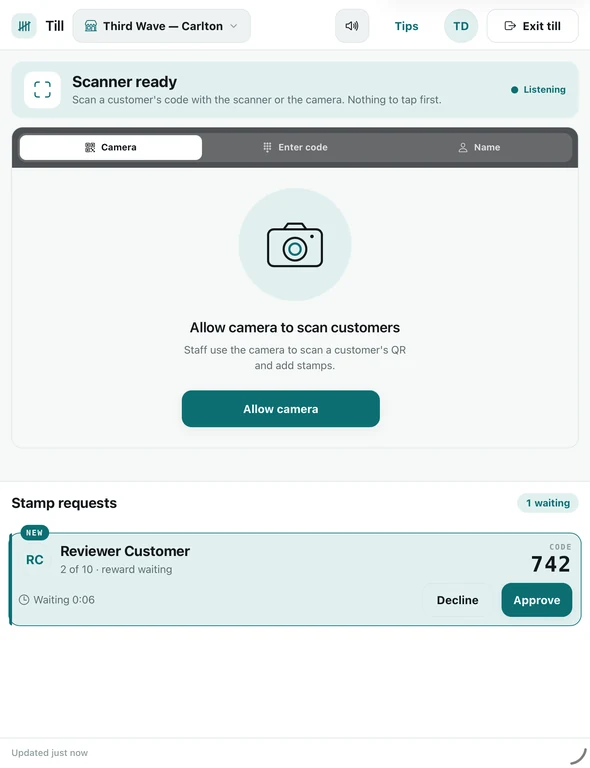
The till on an iPad held upright: the counter on top, a customer’s request waiting below. Sound, setup tips and leaving
The header has the sound control: Sound on or Muted, and the till remembers a mute on this device. If it says Sound is off — tap to turn on, the browser needs one tap before it can play the chime.
Setup tips shows the seven tips below in place of the request list. While they are open, new requests show on the way back, as in Back to requests · 2 new. Exit till returns you to the Scan screen.
Keeping the screen awake
The till tries to keep the screen on by itself. If the browser cannot, it says This screen might dim or lock once, with the device setting to use instead, and Got it puts it away for good on that device.
The seven setup tips
The same tips are on the owner’s poster screen, under Set up a till. A tablet or computer by the register, left on the till screen all shift. A scanner is optional — the camera works too.
- Sign it in as staff, not as you
Anyone at the counter can leave the till screen. A staff account keeps your business settings with you. - End each scan with Enter
Set the scanner's suffix to Enter, not Tab, and its keyboard layout to US English. Pair a Bluetooth scanner in Settings → Bluetooth — no app or driver. - Keep the screen on
On an iPad used only as a till: Settings → Display & Brightness → Auto-Lock → Never. Or use Guided Access, which has its own auto-lock. - Allow the camera
In Safari: aA → Website Settings → Camera → Allow, so it doesn't ask every time. - From the Home Screen?
Added to the Home Screen, the till can keep the iPad awake only on iPadOS 18.4 or later. Before that, run it in Safari. - Silent Mode mutes the chimes
Every chime also shows on screen — the screen is the real signal. - Keyboard gone?
A Bluetooth scanner hides the iPad keyboard. Tap the keyboard button in the bar at the bottom to type a code.
Good to know
- Sign the till in as staff. Every stamp added on it counts towards the account signed in there, and anyone at the counter can leave the till screen.
- A request cannot redeem a reward. To hand one over, scan the customer’s QR.
- Requests need a connection. Offline, the list says Requests paused while offline: nothing can be approved until you are back online, and waiting requests may time out meanwhile.
- The usual safeguards still apply. Check the name on the sheet, and a repeat scan never stamps twice.
Rules for requests — how long they last, how many a customer can make — are in Stamp requests. The till works on every plan, Free included.