Sign in and open the counter
If you work behind the counter, this is the whole setup: sign in with a code, check which venue you are on, and you are ready to stamp.
Your manager has to add your email to the venue before you can sign in. If Tallyr does not recognise you, that is usually all it is — ask them to invite you, then try again.
Open Tallyr and choose Staff member
Go to app.tallyr.com.au on the phone or tablet you will use at the counter. Under For businesses, choose Staff member.
There is nothing to install — it runs in the browser. It is worth adding it to the home screen of the counter device so it is one tap away.
Sign in with a six-digit code
Enter the email address your manager invited, and Tallyr emails you a code. No password, at sign-in or ever.
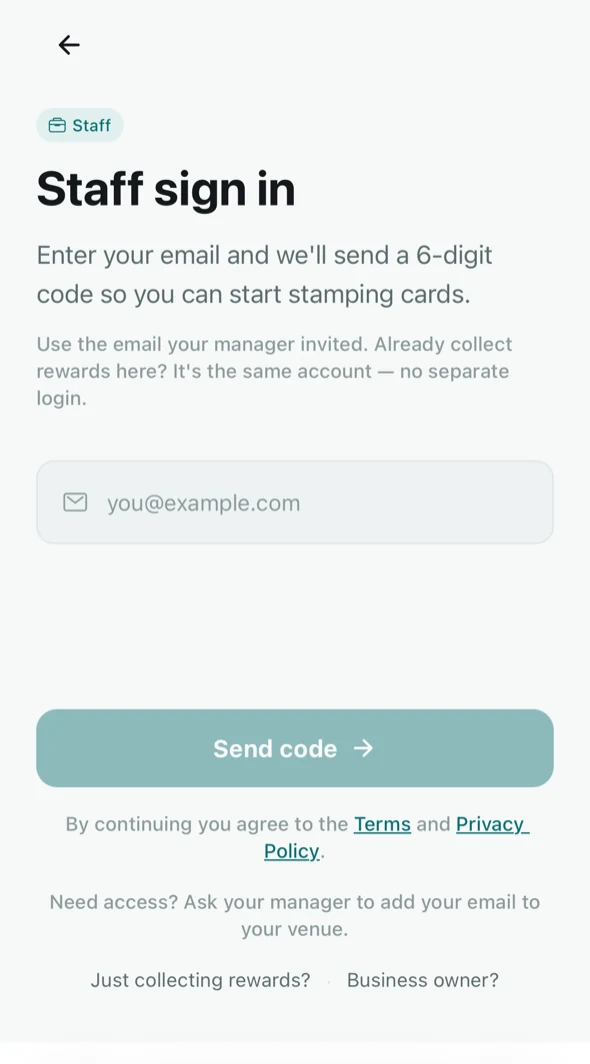
The staff sign-in screen. NoteIf you also collect stamps at this business as a customer, it is the same account — the screen says so. You do not need a second login, and switching between the two is the next step.
Make sure you are in the staff view
One account can be a customer and a staff member, so Tallyr may open in the customer view. Tap your initials in the top right, choose Switch role, and pick Staff.
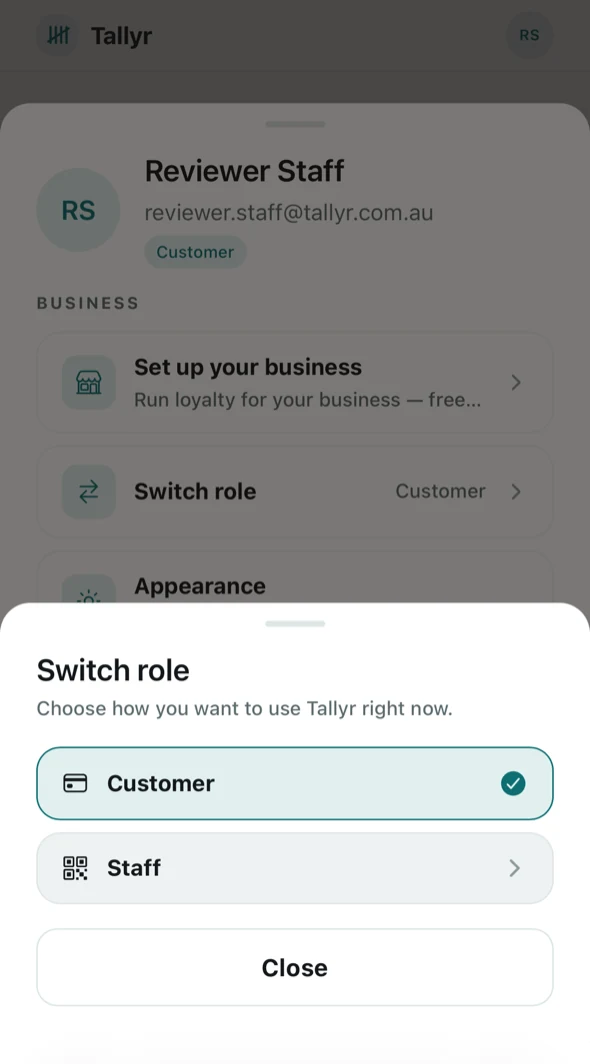
Switching from the customer view to the counter. It remembers, so this is normally a first-day-only step.
Check the venue at the top
The counter opens with the venue name across the top — Third Wave — Carlton in these screenshots. Everything you stamp is recorded against that venue.
If you work at more than one, tap it to switch. Getting this wrong puts your scans on the other shop\’s numbers, so it is worth a glance at the start of a shift.
The three tabs
- Scan — the counter. Where you spend the shift, and where stamp requests wait. On a tablet or computer it also offers Open till screen: Use the till screen.
- Activity — how today is going. Guide.
- Profile — who you are signed in as, which venue is active, and the practice run.
Never stamped a card before? Do the practice run first — it takes under a minute and nothing you do in it is saved.