Ask for a stamp
Scanning the QR poster by the counter asks the team for your stamp. They confirm it and your card updates, and there is nothing else for you to tap.
Scan the poster
Use your phone’s camera, or the Scan tab in Tallyr. The request is sent the moment the scan lands; there is no button to press. New here? The same scan signs you up.
Not signed in yet? Sign in with your email code first. If you finish within 15 minutes of scanning, the request goes then; after that you land on your card (or the card choice, at a business with several), and can scan again.
Wait for the counter
The Stamp request screen says “Waiting for the counter” and “The team will confirm your stamp. You don’t need to do anything else.”
Under Your number is a three-digit number: “Show this number if the team asks.” Time left to confirm counts down below it, with your card’s progress underneath.
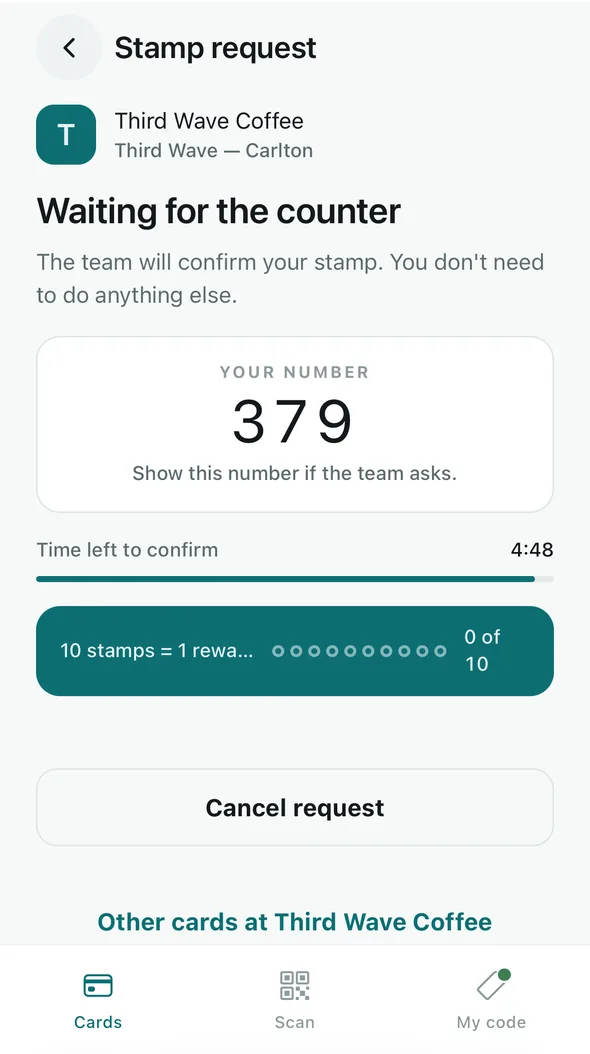
Waiting for the counter, with your number. See what happened
The screen moves on by itself. Adding your stamp now means someone at the counter is on it. Stamp added shows the stamp on your card, and the reminder to “Scan the poster again on your next visit.”
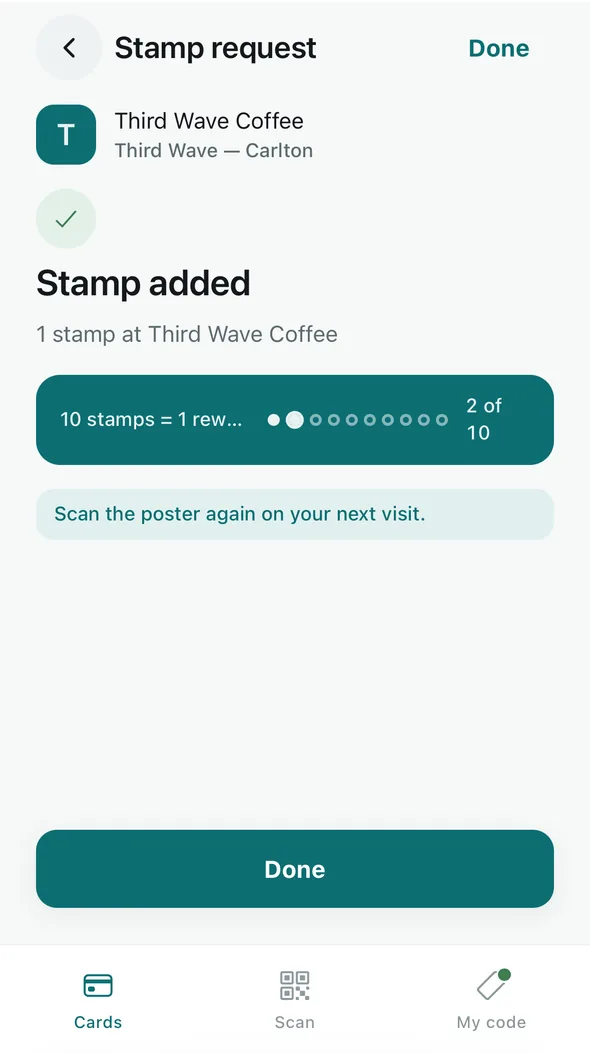
Stamp added: 2 of 10. If that stamp filled the card, the screen says Your card is full instead: show your code at the counter and the team will hand the reward over.
No name on your account? The screen asks you to “Add your first name so the team can find you”. It is what staff see on your request, along with your number.
If no stamp was added
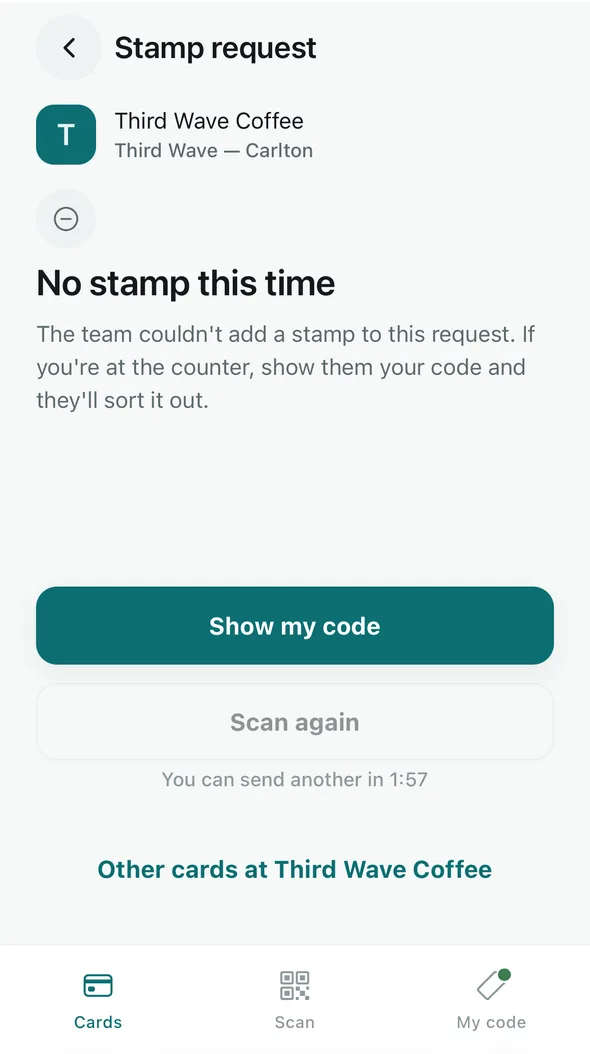
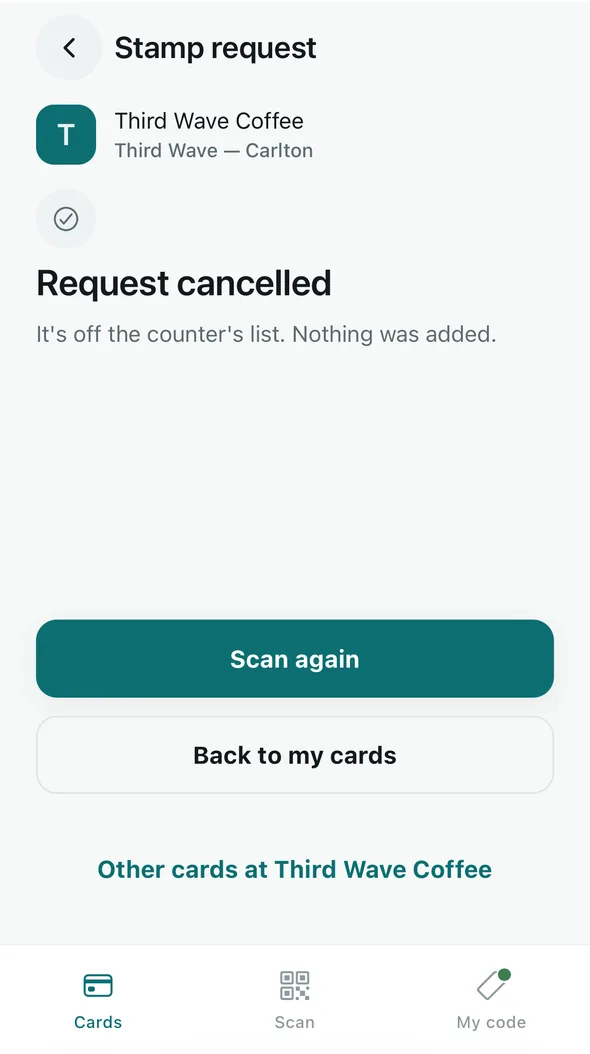
- No stamp this time — the team declined the request. If you are at the counter, show them your code and they will sort it out. The screen shows when you can send another.
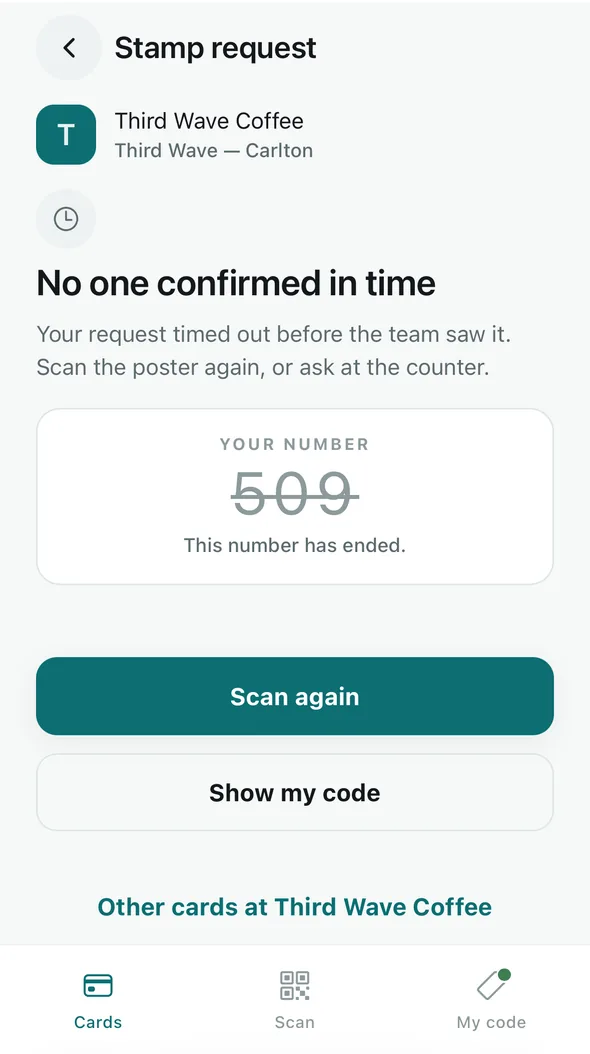
- No one confirmed in time — a request lasts 5 minutes. Scan the poster again, or ask at the counter.
- Request cancelled — you tapped Cancel request. It is off the counter’s list, and nothing was added.
Cancelling
Changed your mind, or scanned the wrong venue? Cancel request takes the request off the counter’s list. If someone has just started on it, the screen moves to Adding your stamp now instead.
Limits
- A request lasts 5 minutes.
- Scanning again while one is waiting brings back the same request, with the same number. It never sends a second.
- After the team declines one, you can ask again at that venue after 2 minutes.
- You can make at most 6 requests at one venue, and 30 in total, in any 24 hours.
Past a limit, or at a venue that cannot take requests right now, the app says Please ask at the counter. The team can still add your stamp by scanning your code.
Rewards
A request adds stamps; it cannot hand over a reward. To claim one, show your code at the counter — see Claim your reward.
What the team sees
Your display name and picture, your three-digit number, and your cards with that business. Never your email address, phone number or birthday. A request is erased 30 days after it ends, and straight away if you delete your account; the stamp it added stays on your card.