Read your insights
The Insights tab answers four questions: how busy were you, are new people joining, who is about to earn something, and who has stopped coming in.
Pick a window first
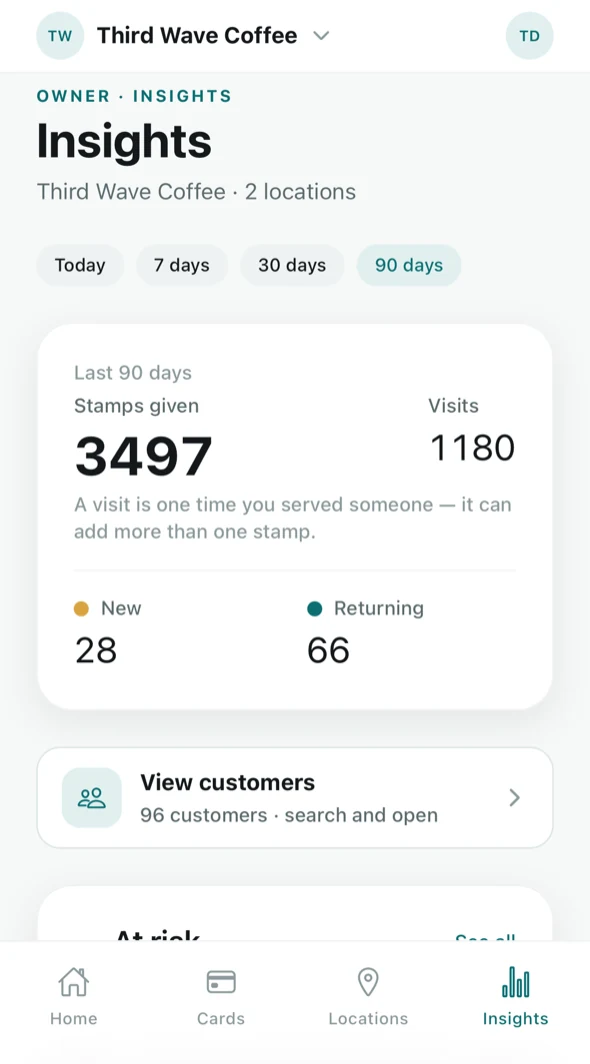
Everything on the screen answers for the range you choose at the top — Today, 7 days, 30 days or 90 days. A quiet week and a broken week look identical until you widen the window, so check the range before reading anything into a number.
The Free plan includes Basic analytics: the headline numbers, stamps per day over 7 and 30 days, and recent redemptions. Longer ranges, the customer lists and the deeper breakdowns are Advanced analytics, part of Tallyr Pro — on Free each of those sections explains what it does and how to upgrade. See Your plan and billing.
Stamps and visits
- Stamps given — how many stamps you handed out in the range.
- Visits — how many times you served someone. As the screen says, one visit can add more than one stamp, which is why the two numbers differ.
New vs returning
Tallyr defines these precisely, and the definitions are on the screen so you never have to guess:
- New — someone issued their first loyalty card for your business inside the range.
- Returning — someone stamped or redeemed in the range whose card was created before the range started.
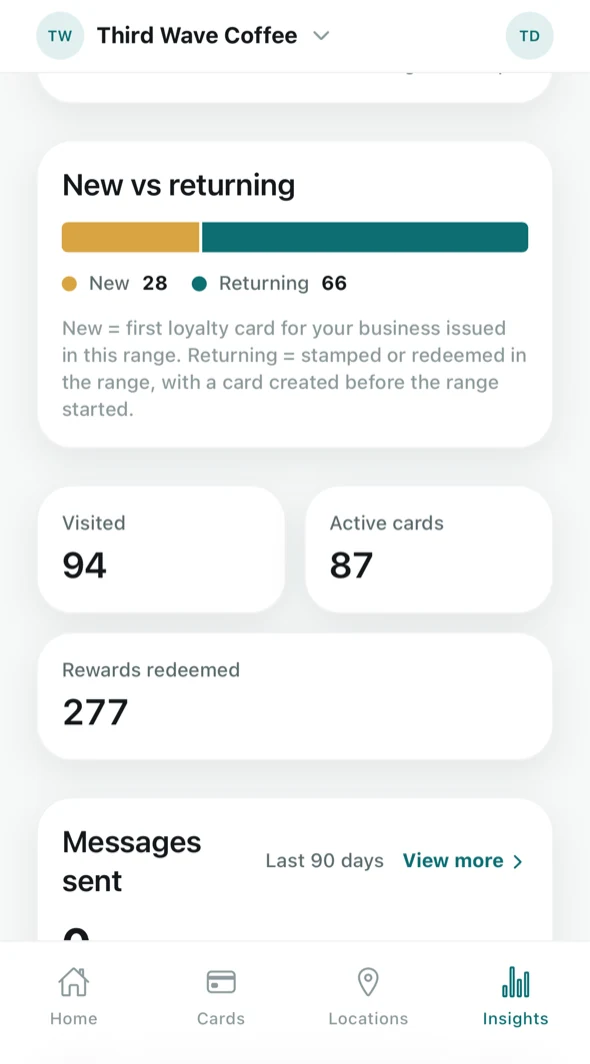
Below them sit the plain totals for the range: people who visited, cards currently active, and rewards redeemed.
The two lists that are worth acting on
These are the parts of Insights that tell you to do something rather than just how it went.
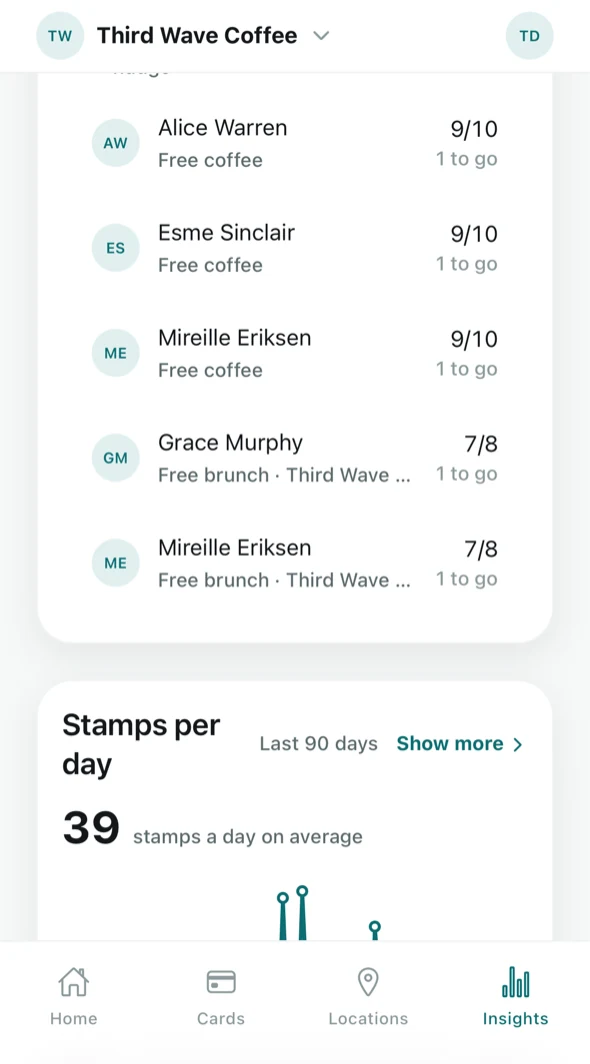
- Close to a reward — people one or two stamps away, with the card and the count. These are the easiest people in your business to bring back in.
- At risk — regulars who have stopped showing up.
Both show a few names with a See all link into the full list, so you are not limited to whoever happens to be top.
Stamps per day
The chart gives you an average — “39 stamps a day on average” — and the shape of it across the range. Show more opens a longer window when you want to compare a quiet fortnight against a busy one.
Per-venue numbers
Insights covers the whole brand. For one venue on its own, go to the Locations tab, tap the venue and choose Location insights. See Add and manage locations.
If a section says it could not load, that is a failed read and not a quiet week — Tallyr distinguishes the two deliberately, so a zero on this screen really is a zero. Retry the section rather than acting on it.