Stamp a customer's card
This is the job. A customer shows you a code, you scan it, their card opens, you add the stamps and hand back the coffee. Or they scan the poster, and you confirm their stamp request.
Let the camera see the code
The Scan tab opens on the camera. The first time, the device asks permission — tap Allow camera. Without it you cannot scan, though you can still use the code fallback below.
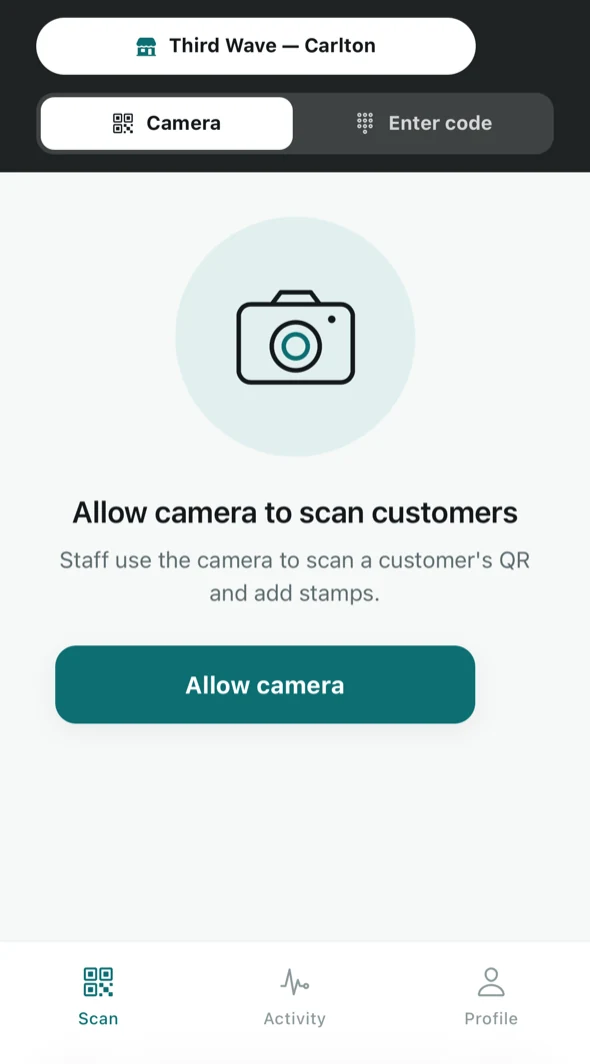
The counter, asking for camera access the first time. The customer opens Tallyr and shows you their code. Point the camera at it; there is no shutter button to press.
Check the name, then add the stamps
Their card opens with the customer\’s name, how many stamps they have, and which card it is. Glance at the name — it is the one check that catches a wrong scan.
Set how many stamps with the stepper, then tap Add 1 stamp. One purchase, one stamp, unless they bought more than one.
If the camera will not do it
Switch to the Enter code tab at the top. The customer can read you the six characters from their screen instead.
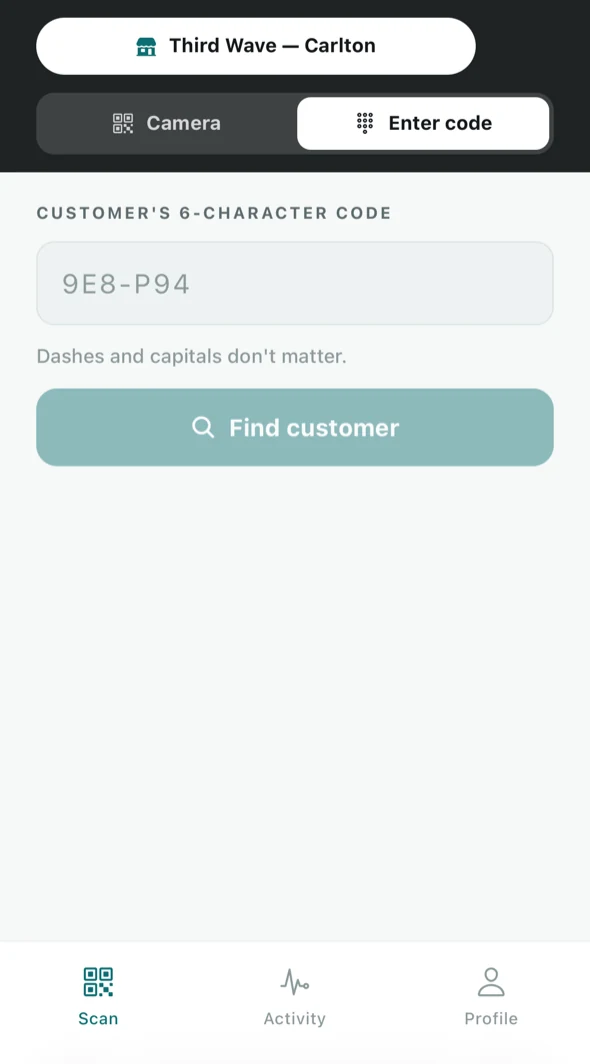
Typing the customer's code instead of scanning it. As the screen says, dashes and capitals do not matter. Tap Find customer and you get the same card you would have got from a scan.
If their phone is flat
Switch to the Name tab and start typing their name: three letters is enough. You only ever search this business’s own customers, by name, never by email or phone, and only their name, picture and cards with this business come back.
Tap the right person and their card opens exactly as it would from a scan. Check it is them before you add anything: two regulars can share a first name.
Stamp requests New
Customers can also ask for a stamp by scanning the venue’s QR poster. Nothing is stamped until you confirm it.
Tap the pill on the Scan screen
It reads No requests, or a count such as 1 stamp request waiting. Tap it to open Stamp requests.
Check who it is
Each request shows the customer’s name and picture, a three-digit number, their cards here and how long they have waited. Their phone shows the same number under Your number, so if two people share a name, ask for it.
Approve or decline
Approve opens the usual stamp sheet: check the name, set the stamps, add. Decline asks you to confirm, then tells the customer kindly that no stamp was added. You never have to give a reason.
- Someone else on it? The row says who is handling it. A request you open is yours for 2 minutes, so two people never stamp the same customer.
- Your own request? If you collect stamps here too, yours is marked Your request and a colleague approves it.
- Nobody got to it? A request ends after 5 minutes and the customer is told. They can scan again or show you their code.
A request cannot hand over a reward. When one is waiting, the sheet says “A reward is waiting. To hand it over, scan their QR — a request can’t redeem.”
On a tablet or computer by the register, the till screen keeps the scanner and the request list side by side all shift. See Use the till screen.
When something does not work
The counter tells you which of these it is, rather than failing silently:
- The code is expired. Customer codes rotate every minute or so, on purpose — a screenshot of someone else's code is no use. Ask them to show it again.
- The code is not one of ours. You have scanned some other QR.
- You are offline. Stamping needs a connection. Reconnect and try again — nothing is lost, it just cannot be recorded yet.
- The card does not run at this venue. Some cards are set up for particular shops. That is the owner's setting, not something you can override at the counter.
Scanned the same customer twice by accident? Tallyr recognises a repeat and will not double-stamp them, so a nervous double-tap does not cost the business a coffee.
When a card is full
Once a customer reaches the goal, their card is ready to redeem and the counter offers that instead of another stamp. Confirm it with them, hand over the reward, and Tallyr records the redemption against your venue and your shift.