Invite and manage staff
Staff are the people who stamp cards at the counter. You invite them by email and choose which venues they can stamp at — they never see your billing or your settings.
Your team
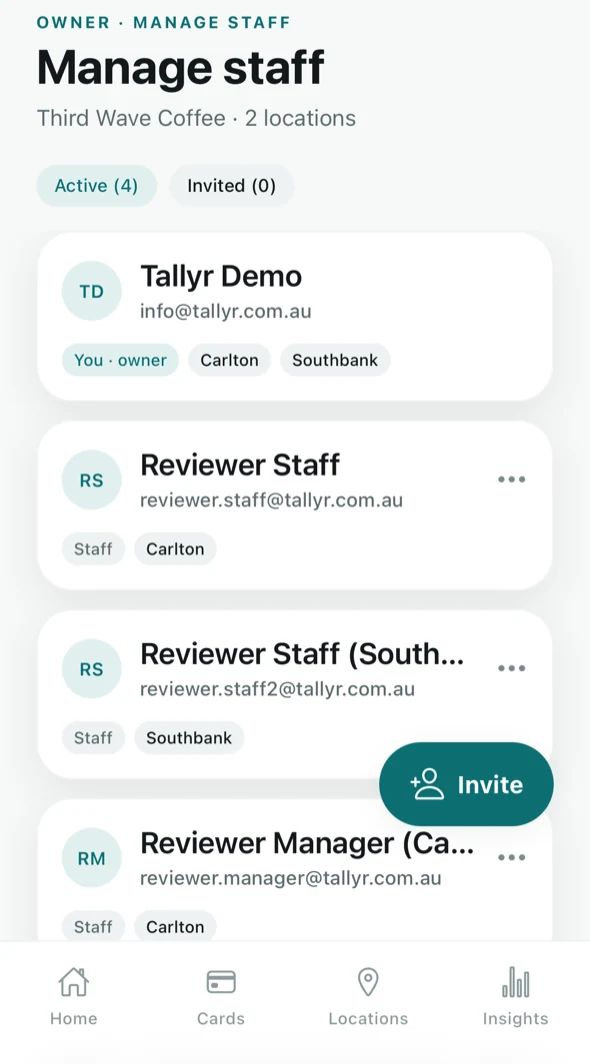
Reach the team from Invite staff on the Home screen. The list separates Active from Invited, and each person shows their role and the venues they are assigned to.
Invite someone
Tap Invite
The button sits at the bottom right of the staff list, and there is an Invite staff shortcut on Home.
Enter their email and pick their venues
Assign at least one location — that is what decides where they are allowed to stamp. Someone rostered across two shops gets both, and their app will ask which one they are on when they start a shift.
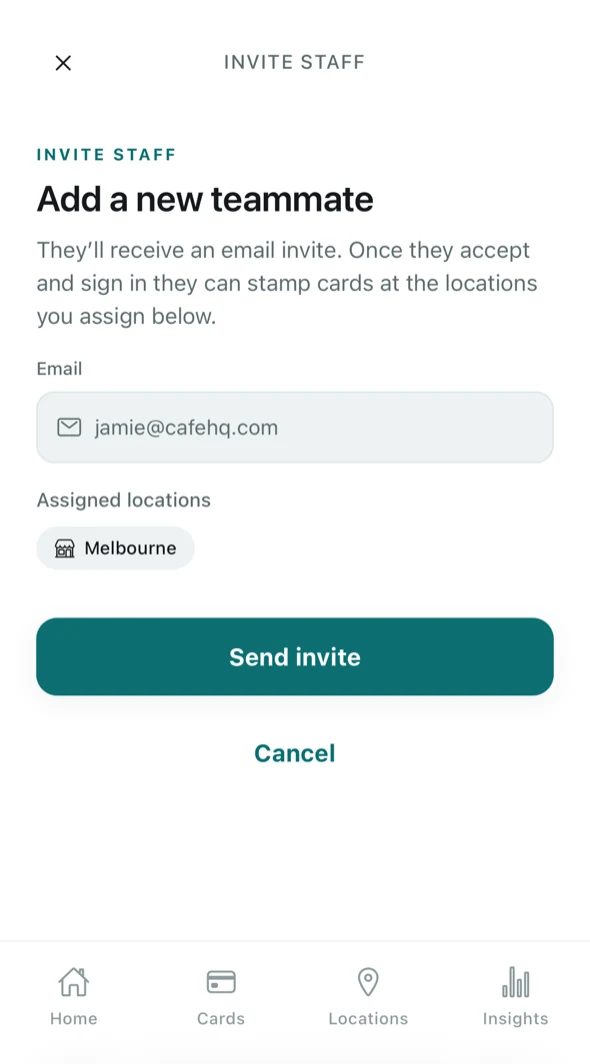
Inviting a teammate. They accept and sign in
They get an email invite. Once they accept and sign in — with a six-digit code, the same as you — they can stamp cards at the venues you assigned.
They sign in through the Staff member option on the welcome screen, not Business owner.
The Free plan includes up to three staff. Invites still waiting count toward that limit, and you do not. Tallyr Pro has no staff limit; on Free, a fourth invite asks you to upgrade first. See Your plan and billing.
One invite per email address. If Tallyr says an invite or active account already exists for that address, check the Invited tab — it is probably already sitting there waiting to be accepted.
Changing or removing access
Open a staff member from the list to see who they are, where they work and how they are doing. From there you can change their venues, disable them at one venue or everywhere, and re-enable them later.
Pending invites can be revoked from the Invited tab before they are accepted.
Disabling someone stops them stamping immediately. The stamps they already gave stay in your history — nothing a departing staff member did is erased from your numbers.
What staff can and cannot see
- They can — stamp cards, approve or decline stamp requests and redeem rewards at the venues you assigned, and see their own activity for the shift.
- They cannot — see your billing, your plan, your customer list, your insights, or any venue you did not assign them.